Artica scores highest in four-product test, IPFire, Squid and Apache also deliver solid proxy services.

Providing a common gateway for web services, caching web requests or providing anonymity are some of the ways organizations use proxy servers. Commercial proxy products, especially cloud offerings, are plentiful, but we wondered if open source or free products could provide enterprise-grade proxy services.
For this test we reviewed four proxy servers, Artica, Squid, IPFire and Apache server using mod_proxy. All four products are free or open source and provide proxy services alone or bundled with other features. We limited our test to forward proxy services with an eye toward ease of installation and configuration, system requirements, features and management tools. The products tested performed well under our simple speed tests, with differences too small to note. We did not test large-scale or distributed deployments due to the significant variables associated with such environments.
Overall we liked Artica, which combines Squid with many additional vendor-supplied features and a robust, web-based GUI. Artica also provides granular control over the proxy server and exposes features of Squid that may not be very accessible or apparent to non hardcore Linux sysadmins. Artica’s reporting features were also a plus. We found Artica to be the most progressive of the products we tested, although by no means the industry leader just yet.
Squid is a rich, dedicated proxy product that provides numerous configuration options. With a mature market base, Squid is very widely used and notably, parts of the proxy features in both Artica and IPFire are built on Squid. Although Squid itself does not have a built-in user interface, many of its features can be configured using the third-party Webmin system configuration tool.
+ ALSO ON NETWORK WORLD Open source pitfalls and how to avoid them +
IPFire provides very good monitoring, reporting and configuration abilities. Like Artica, IPFire uses Squid for its proxy service. We found the IPFire user interface to be somewhat dated, but we value function over form so this isn’t a show-stopper. We did find the single-page configuration approach appealing as it made it easy to perform the initial setup and quick to tweak features. IPFire also has nice reporting capabilities for pre-defined and ad-hoc reporting.
Although Apache is most commonly recognized as one of the world’s most popular Web servers, it also delivers capable proxy services through its mod_proxy module. Proxy services have matured over the past several releases of Apache as features have gone from experimental to being fully supported.
Here are the individual reviews:
Artica
The Artica proxy server is part of an open source appliance project that includes Mail, SMTP and NAS appliances. Artica is based in France and has been around for about 10 years. Artica Tech claims that over 23,000 servers worldwide run one of their open source appliances and more than 30 million websites have been logged in the Artica database.
We found system requirements to be reasonable at two CPUs and 2.5GB of memory. Our test system had a dual-core AMD processor, but Artica kept reporting that we should really add another CPU. Artica technical support informed us that the system would work fine with the one dual-core processor, despite the warnings.
The Artica appliance can be installed a few different ways, as an appliance running on Ubuntu or CentOS, or as a VM running VMware or Promox. Initially we decided to go the Ubuntu route using instructions found on the Artica website. This essentially involves downloading the latest compressed files from Artica, extracting the files and running the setup command. The setup was pretty slow on our test server, but it eventually completed.
However, when we loaded the Web GUI we were informed that we really should have allocated more memory and that our configuration was not optimum. We did try another install with additional memory, but were not able to get the Ubuntu installation fully operational in any of our attempts. After some back and forth with Artica tech support, we decided to try their pre-packaged ISO that runs on Debian.
Our first install failed with multiple errors. Tech support then provided us with some pointers on how to solve the issues we were experiencing. After a couple of additional failed installs using the Debian ISO, we were finally provided a newer release (1.8.041323) which enabled us to finally get a working installation up and running.
When the Web management console loads for the first time, it runs through a short wizard which essentially confirms network settings (IP address, DNS servers etc) and prompts for user information. You are then redirected to a login prompt, after which the main dashboard is presented. When we first tried to load the Web interface in Internet Explorer, we encountered issues, but it loaded properly using the Chrome browser. Artica uses Ajax and we suspect there might be some slight incompatibility issues between the various browsers. An email to tech support confirmed this and we were told they do not currently support use with Internet Explorer as IE is not entirely ‘W3C compliant’.
We found that the Web interface has a modern and fresh look with a functional layout. It has the main menu items across the top, and displays system warnings and informational items in a two-column format. The initial screen displays the status of various parameters and we were presented with warnings that MySQL needed more memory and that our dual-core CPU was not enough to run in production mode. By clicking the memory warning we were able to configure our memory allocation to accommodate the 3GBs available to our particular installation.
By drilling down to the proxy service you can really get to the core of the performance and configuration of your proxy server installation, such as current memory and CPU usage, percentage use of overall server capacity, number of users and objects. From the advanced features menu you can set limits on HTTP header and buffer size, allocate memory, set up anonymous browsing, and configure reverse proxy along with a host of other settings.
You can also manage organizations, groups and users. By creating one or multiple organizations and groups you can assign users and apply rules for Web access and bandwidth allocation on a very granular level.
Artica has a proxy booster feature that allows you to create a cache directory directly in memory in order to boost performance. Another useful feature forces Google search to not use SSL (which it uses by default) in order to speed up searches and reduce bandwidth usage. Artica can also link to a statistics appliance (a second proxy server) which stores events and statistics, removing this burden from the main proxy.
A big plus is that the Artica community edition sports many of the features of the commercial version, with some hardware limitations, for example the community version supports one cache with a max size of 2GB, on a single processor with no failover capability. It also has scaled-back log features and like most open source products, offers support only through the Artica community forum.
Artica got high marks for being the easiest to set up and run without needing advanced technical knowledge, a definite plus for organizations that may not have subject matter experts on staff for every aspect of their IT infrastructure. The Artica Starting Guide tab links to several instructional videos. We viewed a few of them and they generally provide adequate information on how to get started with various tasks.
On our wish list would be voice narration in addition to the text bubble narrative. We found the user interface very functional, although the Ajax framework noticeably slows down navigation between pages. For the occasional configuration task this is not an issue, but for daily monitoring a proxy server we’d like to see snappier performance.

Squid
Squid is a flexible and customizable proxy server that can be run as a forward proxy (default mode), a reverse proxy (accelerator), in interception mode or in offline mode (minimal network usage). Released in 1996, Squid is currently in version 3.4.2. Mainly used for HTTP and FTP protocols, Squid has limited support for other protocols such as SSL and Secure-HTTP.
Squid can run on most platforms from AIX to Windows, including Unix, Linux and Macs. However, the newer versions of Squid (> version 2.7) do not appear to have been kept in synch with new features for Windows.
We installed Squid on a Ubuntu server using a simple apt-get install squid command. However, the version we ended up with was a few revisions old, so we needed to run an update before continuing with additional configuration. There are no hard and fast rules as to hardware requirements for Squid, but the vendor recommends that weight be given to memory and fast hard drives (SCSI vs. SATA/ATA), as opposed to focusing too much on the number of processors. Squid recommends 32MB of memory for each gigabyte of disk space.
Most configurations are managed in the squid.conf configuration file. This file contains thousands of lines and hundreds of parameters, which can definitely be intimidating at first. We loaded up the configuration file in the VI editor and went to work changing the basic settings as recommended by the user manual.
These mostly included ensuring the IP addresses, listening port and cache location and size were configured properly. Squid can be started manually by issuing a simple ‘squid3 start’ command, but Squid can also be configured to start automatically. This can be done by adding a short startup script to, depending on your server setup, the init,d, inittab, rc.local or by using the daemon tools.
There are different ways to check to make sure Squid is running. You can use the Squid client to access a website or issue a simple ‘squid check’ command. In addition to customizing the squid.conf file you can use the ‘squid’ command to issue a variety of commands to manipulate your Squid installation. For instance a ‘squid3 –k reconfigure’ command tells Squid to re-read the aforementioned configuration file. The ‘squid3 -z’ command creates the swap folders.
While there is no Squid-specific web or other graphic user interface available to manage and configure all aspects of Squid, there is a cache manager utility that provides some management and reporting features. Access to the Squid cache manager is either through a CGI utility that provides online browsing or by the way of the Squidclient, a command line utility for Web requests.
We found the CGI utility somewhat cumbersome to configure, but it does have some reporting features that are helpful, such as a utilization report that breaks down usage by protocol (for instance HTTP or FTP) and displays the number of requests, errors, CPU utilization by time period, starting for the past 5 minutes, then 15 minutes, last hour and so on all the way back to when the cache was started. There is also an IPcache report that displays the name resolutions stored in cache.
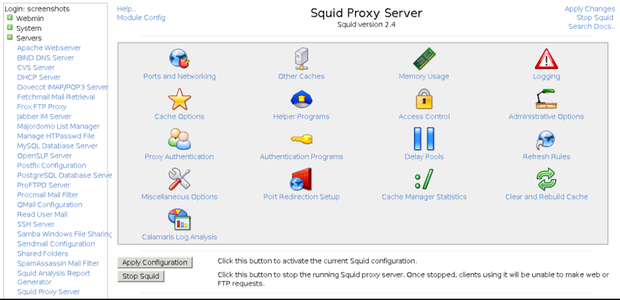
For those who prefer a GUI management, third-party Webmin provides a very good interface to a lot of the Squid features. From the Webmin dashboard you can perform basic tasks such as stopping or starting the Squid service and clearing or rebuilding the cache. Further you can configure the cache, memory/disk limits and set various logging options. The Webmin interface provides granular access control configuration, plus the ability to create custom header access control rules, but lacks monitoring and reporting capability.
Squid provides great configuration granularity. For example, if you want to bypass the proxy for direct access to certain websites you can do so with a simple change to the squid.conf file. Some installations may want to not use the cache at all, only the proxy feature, which is also managed in the configuration file. You can also configure max size of files or the type of files users can or cannot download.
Due to Squid’s maturity in the marketplace we found many useful resources online, ranging from getting started to advanced configuration. The Squid website is a good place to start, although we found some of the documentation to be out of date, with many references to Squid2, when the current version is well into the 3s. We’re hardly surprised when documentation lags with open source products, and have come to expect that a fully functional installation usually requires combining information from different sources.
IPFire
Released under the GPL license, IPFire runs on most Linux platforms. In addition to being a proxy server, IPFire also provides additional services such as content filtering, VPN, firewall and intrusion detection. The Web proxy portion is an implementation of Squid, a feature it shares with Artica.
As with the other products tested, we installed IPFire on a Ubuntu server. The IPFire installation takes only a few minutes and once completed can be managed via Web interface. The Web interface presents a status page that provides basic information about the network such as internal and external IP addresses, system uptime and the ability to shutdown or reboot the system. Across the top is a horizontal main menu with links to the main sections and along the right side is a vertical menu with additional options as you navigate from section to section from the main menu.
Our general observation was that the GUI feels a bit dated and could make better use of the screen real estate. Functionally, however, you can get to most of what you need.
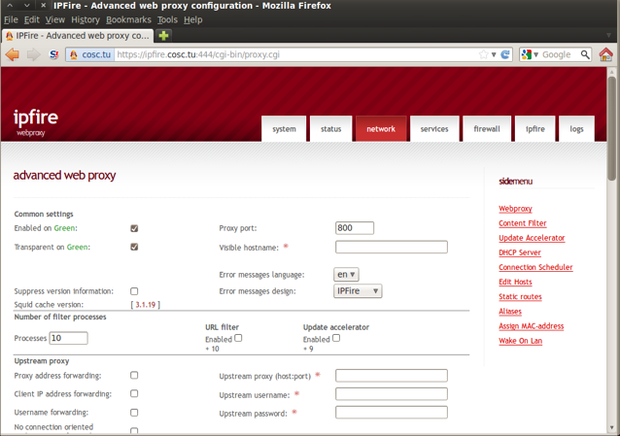
The Web interface is divided into logical sections such as ‘System’, ‘Status’, ‘Firewall’, ‘Network’, ‘Services’ and ‘Logs’. As mentioned, the proxy service is only one feature of the IPFire product. Most of the proxy features are managed from the ‘Network’ section. The main Web proxy screen provides much of the front end management of Squid from a single page. We found it useful to be able to configure ports, IP addresses, bandwidth throttling and transfer limits, cache settings and more from a single page.
IPFire provides two main modes of operation for the proxy server, conventional mode and transparent mode. The conventional mode requires that clients and browsers be configured to use the proxy server, whereas the transparent mode, as its name suggests, works in the background with users unaware that their Web traffic is being routed through the proxy server.
Caching web content has long been a staple task of proxy servers, both forward and reverse. Caching improves performance by fetching and caching frequently accessed content. IPFire makes a point of stressing the importance of correctly configuring its cache, noting that misconfiguration can negatively impact the performance of the server.
Various settings provide granular control over the cache and a separate Squid cache manager allows the configuration of cache memory cache size, object size and the overall size of the hard disk allocated to caching.
IPFire provides a URL content filter which allows administrators to block content by category or by using custom black and white lists. You can manage access based on custom expressions, IP addresses or file extensions. While the IPFire web interface contains no built-in help, there is an online Wiki with helpful configuration instructions.
With the IPFire Web interface you can tap into Squid’s comprehensive logging feature. In addition to displaying the proxy logs in the Web interface, you can run ad-hoc proxy reports from the report section. There are 12 to 15 parameters plus time/date that can be used to filter these reports. This can be useful if there is a need to examine what content is being accessed or if there are usage and billing considerations.
The IPFire update accelerator works similar to a proxy and can be used to cache updates to operating systems and virus software, thus reducing the need for every client computer to download each update from its source.
We liked the browser check feature, which can limit access only from certain browsers. The privacy setting, which the vendor calls a ‘fake’ user-agent feature, allows you to change the actual user-agent of the browser to a predefined setting, thus providing some level of anonymity. This feature may be useful in certain circumstances, but isn’t likely to meet current HTTP best practices. We tested this feature with an external Web server and found that it did capture our custom header to the log.
We also liked IPFIre’s ability to authenticate clients via LDAP, Windows, Radius or local authentication methods, which allow access to the Internet only after the client has been authenticated. Internet access can also be limited to certain hours or certain clients can be denied access per the needs of the organization.
Apache mod_proxy
Mod_proxy is a module of the ubiquitous Apache Web server, which by most accounts runs over half of all websites worldwide. Although Apache runs on a variety of platforms, including Windows, it is generally run on Linux servers, either as a stand-alone Web server or often as part of the popular LAMP (Linux, Apache, MySQL, PHP) stack.
With proxy services support for the HTTP 1.1, FTP and CONNECT protocols, mod_proxy can be configured to act as a reverse proxy or as forward proxy. We installed Apache version 2.4.7 on a Ubuntu 14.04 server and configured mod-proxy in forward mode by adding ‘ProxyRequests On’ and ‘ProxyVia On’ to the httpd.conf file, then restarting the Apache service.
This worked well on our test server, but we noticed that our client computers were not able to access Google searches. We quickly traced this issue to Google’s requirement for https. We then realized we needed to add the mod-proxy connect module in order to be able to use the HTTPs protocol.
Caching in Apache is accomplished through a separate cache module, either mod_cache or mod_file_cache. The mod_cache module can be used to cache either local content or content that has been fetched by the proxy server. In order to use mod_cache, a storage management module is also required, two of which are included with Apache, one for disk based storage and one for memory based storage. The simpler mod_file_cache module can be used for frequently requested static files and it is not suitable for files served by special content handlers. With the mod_cache you can have greater flexibility in the type of content being cached. Mod_cache provides about 15 different directives that can be used with httpd.conf to customize caching functionality.
In addition to the core mod_proxy module, there are also a few supporting modules used for proxy purposes in Apache. One is the mod_proxy_http which handles HTTP and HTTPS requests, another is the mod_proxy_balancer, which handles load balancing support for the HTTP, FTP and AJP13 protocols.
Although Apache does not come with its own user interface, you can configure and manage the basics from third-party interfaces like Webmin. This means you can select proxy directives by selecting them from a checklist and you can also modify any of the configuration files from a text editor available from the Webmin user interface.
Although we did not perform benchmarking for our review, our informal testing from a couple of different client computers did not reveal any significant difference in performance by going through the mod_proxy server for Web access vs. direct access.
All in all, what we found appealing with Apache mod_proxy is that it is already available with the Apache Web server and getting started with the basics does not require extensive configuration. However, it is flexible and granular enough to offer customization that will fit most scenarios, whether you use it for forward or reverse proxy purposes.
With Apache or any other proxy server, it is important to secure the server before putting it into production. This is typically done by limiting proxy access to only clients located on your local network.
In terms of how the test candidates stack up to their commercial counterparts, we found the open source products to be very capable in delivering core proxy services across a full spectrum of test scenarios. This is also reflected by the very substantial user bases of two of our test candidates, Apache and Squid. Wikipedia, which runs Squid as its front-end caching service, receives between 25,000 and 60,000 page requests per second. Squid is also supported in the popular commercial server Red Hat Linux. Apache Server continues to enjoy tens of millions of installed bases.
But no matter the features, performance or even superstar status of some products like Apache and Squid, open source products are not for everyone. Some organizations need top tier, vendor guaranteed SLAs, security or other vendor-supplied assurances that can only be found in commercial contracts or subscriptions.
Perschke is a web and database developer with 15+ years of industry experience. You can reach her at susan@arcseven.com.
|
|
Squid |
Artica |
Apache mod_proxy |
IPFire |
|
Pros |
Mature product, flexible, granular controls |
Modular interface, granular controls, reporting tools |
Easy install, configuration, bundled with Apache server |
Web-based management, easy installation. |
|
Cons |
No GUI management tools |
Installation glitches, no support for IE |
No GUI management tools |
Dated user interface |