Data synchronization for two tower computers and a laptop is a daily routine for me. MAIN tower is in my home office; SPARE tower is in my university office; Norwich University supplies me with a laptop computer as well. For the last five years, I’ve been ensuring that these computers have the same data by using the Microsoft SyncToy versions. I wrote about my initial experience with SyncToy in 2005.
I use SyncToy v2.1 morning and evening – in the morning to synchronize
• MAIN to a USB drive
• USB to SPARE
• USB to PORTABLE
Then in the evening, I have to synchronize PORTABLE to SPARE and SPARE to USB before leaving my university office and then synchronize USB to MAIN on reaching my home office. Whew!
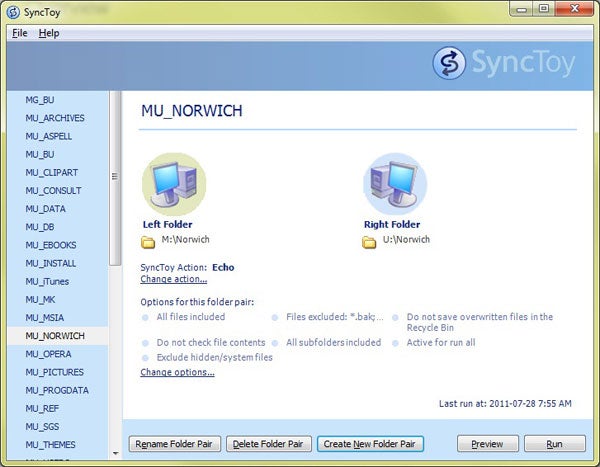
SyncToy is free. The product allows us to define synchronization pairs: folders or even entire volumes that we want to ensure are identical on source and target. SyncToy Version 2.1 is available for 32-bit and 64-bit Windows. One can create a new folder pair, delete an old folder pair, and rename any folder pair from this window.
Synchronization options include:
• Synchronize: “New and updated files are copied both ways. Renames and delete from either side are repeated on the other.”
• Echo: “New and updated files are copied left to right. Renames and delete on the left are repeated on the right.” Here, left means the source and right means the destination.
• Contribute: “New and updated files are copied left to right. Renames on the left are repeated on the right. No deletions.”
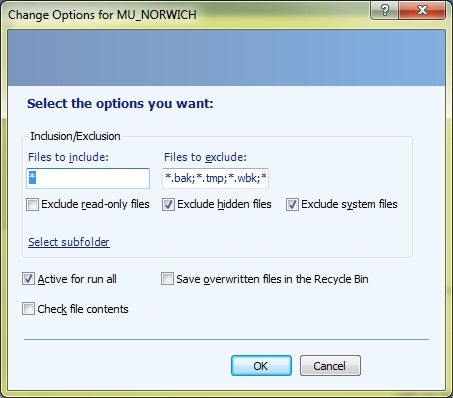
Run-time options include:
• Wildcard characters for inclusion and exclusion filters.
• Checkboxes for “Exclude read-only files,” “Exclude hidden files,” and “Exclude system files.”
• File menu for selecting subfolders; this feature provides complete control over exactly which subfolders are to be synchronized in any parent folder.
• “Active for run all” means that a particular synchronization pair is automatically selected in the overall “Run all” display. Clicking “Run” in that display activates all the selected synchronizations.
• Deleted files can be saved in the Windows Recycle Bin.
• “Check file contents” is explained in its Help pop-up as, “specify to examine file contents in addition to name, size and date to determine if two files are identical.”

The “All Folders Pairs” display lets the user select whatever pairs are suitable for a specific synchronization; those pairs marked as “Active for run all” are automatically checked. Right-clicking anywhere in the window brings up three useful options:
• “Check all” to activate all pairs
• “Uncheck All” to turn all of the pairs off
• “Toggle All Checks” which converts each checkbox to its opposite.
The option “Preview All” runs SyncToy as far as determining which files would be changed on execution. One can complete the synchronization at that point or cancel it.
It’s easy to synchronize SyncToy execution using the Windows Task Scheduler.
Unfortunately, SyncToy v2.1 has some serious problems.
• There is no way to edit the source and destination of an existing pair other than deleting it and creating a new pair.
• Running SyncToy when the target disk is unavailable can cause silent conversion of the source and target pairs to become identical. For example, I have occasionally discovered that a pair such as “drive1:/source_directory & drive2:/target_directory” had been converted to “drive1:/source_directory & drive1:/target_directory” at some point without an error message. As a result, running the standard SyncToy pairs without examining each one to see that it is correct can result in failure to synchronize the intended directories.
Because I rely on synchronization to be sure that I can work on the same data regardless of which system I am using, this bug caused confusion, mistakes and embarrassment if I tried to show students in class an updated PowerPoint and found it out of date or even missing. As explained above, one way to fix this error is to delete the damage pairs and re-create them from scratch. An alternative is to retrieve a backup of the SyncToy pairs from the local application data folder (on Windows 7, that’s where username is a variable string with your own user identifier.
• The program sometimes creates copies of files by adding the string “.1.” to the name of the original. For example, one can find files called “this_is_the_original.docx” and “this_is_the_original.1.docx” in a directory. On some occasions, I have found hundreds of duplicated files on the destination disk, all of which I had to locate and delete. The problem is exacerbated when one discovers legitimate files ending in “.1.” The mixture of legitimate and spurious “.1.” files forces careful analysis of what to delete.
• In a test of SyncToy’s ability to recognize massive deletions of files, I removed every file from a target directory (after taking a backup) and launched SyncToy to reestablish the same files on the target. The product restored exactly two files out of the 124 that needed synchronization! To get the product to work right, I visualized hidden files and deleted the SyncToy*.dat (e.g., SyncToy_3179bae8-736c-4690-bb72-184bae4ce1c3) files that allow the product to save time by noting which files have been changed since the last synchronization – but not to notice the deletion of 124 files on the target. This deletion usually allows the synchronization to work properly. However, in this experiment, the retry also failed. I had to define a new version of the pair with a different name.
SyncToy does a pretty good job of synchronizing systems, especially considering it’s free. One of its best features is that it accomplishes renames by actually renaming target files rather than just deleting and copying them. This technique saves time, especially after one has decided to change naming conventions; for example, using Better File Rename v5.7, one can convert thousands of files to all-lowercase or replace all blanks in filenames by the underscore (_) character. Synchronizing such massive filesets is potentially orders of magnitude faster using renames than using copying functions.
In the next part of this two-part discussion of synchronization, I’ll be reviewing ViceVersa PRO v2.5 from TGRMN Software.