Checking the channels used by your wireless network and others nearby can help when troubleshooting Wi-Fi interference and performance issues. Even if poor Wi-Fi connectivity hasn’t been noticed yet, it’s a good idea to ensure wireless routers and access points aren’t on the same channels, or on overlapping channels for the 2.4Ghz band.
Though Android doesn’t natively show you channel usage of Wi-Fi networks, you can download apps that will show you, commonly called Wi-Fi stumblers, scanners, or analyzers. They also give you other useful information, such as the MAC addresses of each access point so you can better identify them and their signal strength in dBm values so you known their exact signal levels instead of just good, poor, etc. You can even use these apps to perform basic Wi-Fi site surveys during wireless LAN (WLAN) deployments, modifications, troubleshooting, or security sweeps.
Here are a couple free apps that display and analyze the Wi-Fi channels:
 ITworld/Eric Geier
Example of network details shown by Wi-Fi stumbler apps, like Wifi Analyzer in this screen shot.
Though the exact features vary, most of these apps provide similar functionality. They list the network details of each access point: the SSID, MAC address, equipment vendor, channel, signal strength, and security method.
 ITworld/Eric Geier
Some apps (like the Wi-Fi Analytics Tool in the screenshot above) show a graph of each access point’s signal strength history.
 ITworld/Eric Geier
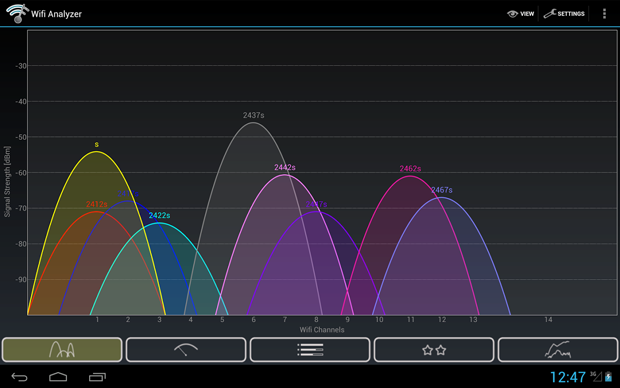
A graph showing channel usage is often provided (such as with Wifi Analyzer in the above screen shot). This is a great way to visualize any access points on the same or overlapping channels.
 ITworld/Eric Geier
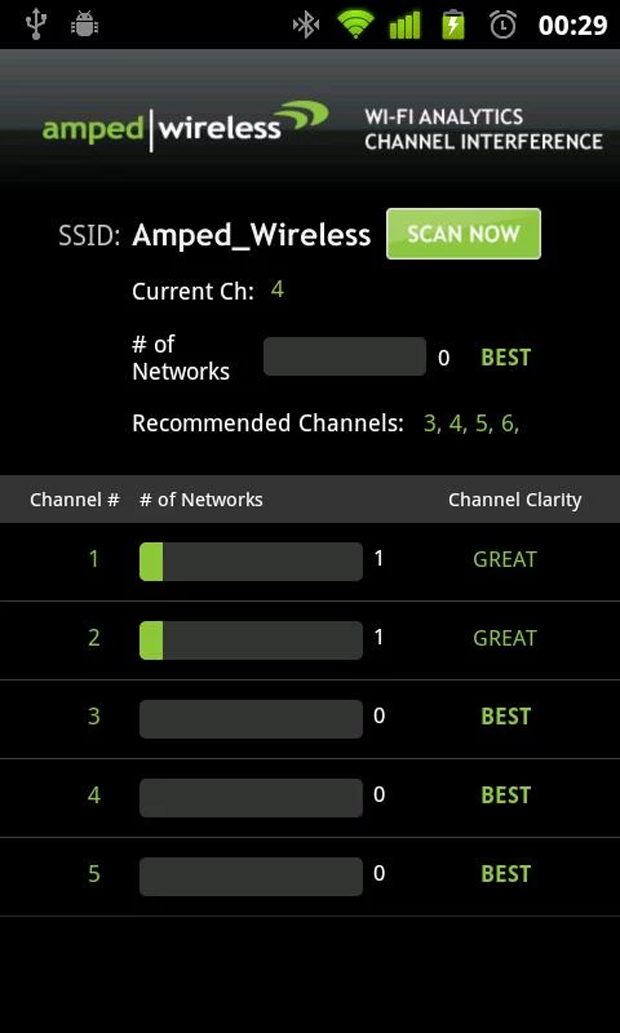
Some apps (like the Wi-Fi Analytics Tool shown in the screen shot above) also have a feature to help you identify which channels are least congested, useful when adding another access point or to see if another channel might be better for existing access points.
 ITworld/Eric Geier
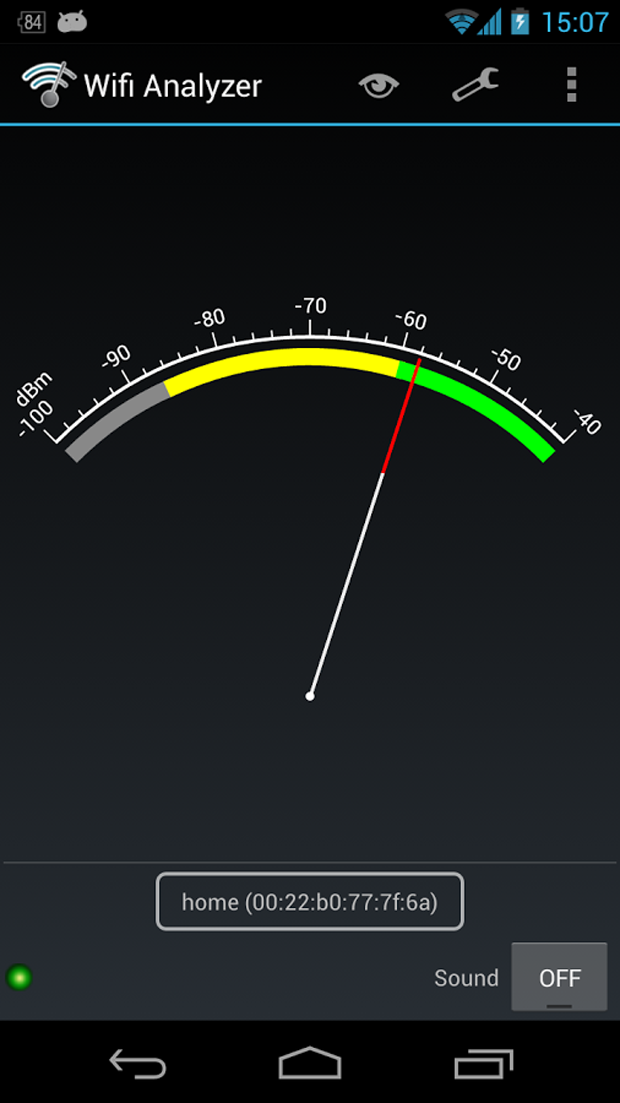
Some apps (such as Wifi Analyzer shown in the screen shot above) also offer a signal meter function, where you can select a specific access point and then use the meter and beeping sound to help find it.
You might also consider paid Wi-Fi stumbler apps that provide more functionality and slicker GUIs.
- inSSIDer ($9.99)
- WiFi Insight WiFi Analyzer ($0.99)
- WiFi Analyzer Pro ($2.59)
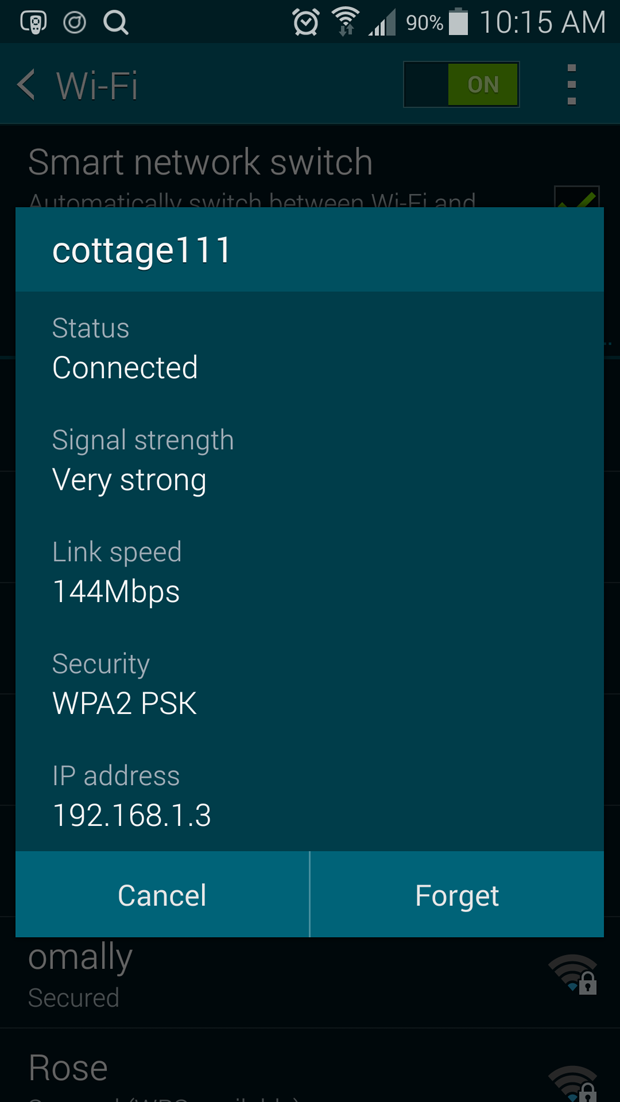
Keep in mind that while you can’t view all the details we discussed in Android without an app, you can get a little more detail about your current connection. On the native list of Wi-Fi networks in Android, tap on the name of the network you’re currently connected to. You’ll see the status (i.e. Connected), signal strength (strong, good, poor, etc), link speed (or data rate in Mbps values), security type (such as WPA2 PSK or 802.1X EAP).
 ITworld/Eric Geier
Tapping the Wi-Fi name you’re connected to in Android shows some connections details.